
Microsoft PowerPoint
Microsoft CorporationProductivity
4.819.02K Reviews
- Version
- Varies With Device
- Installs
- 1.00B
- Age Rating
- Everyone
Screenshots
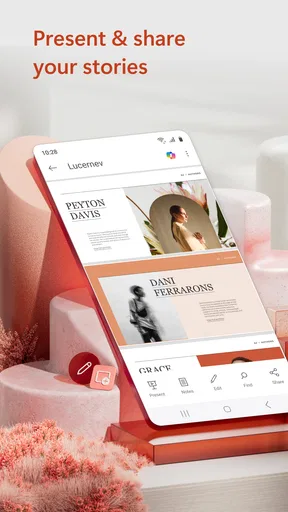
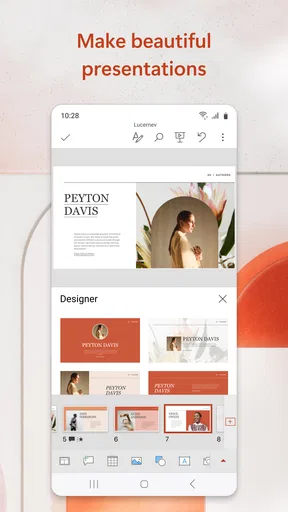
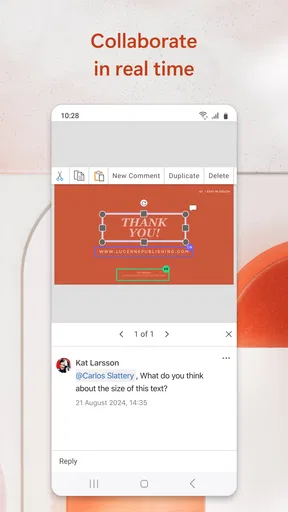
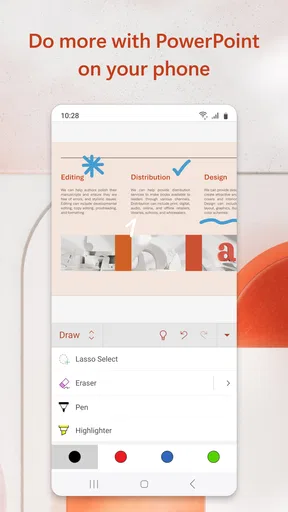
Our Review of Microsoft PowerPoint
 Analysis by Appyee
When I choose a presentation app, I care less about how many effects it offers than whether I can turn rough notes into a clear story, make edits on the go, and hand the file to someone else without creating extra work. Microsoft PowerPoint remains a familiar choice for that job, but it is not automatically the right fit for every presentation or every screen. Its strongest case is compatibility with the way many people already build and share slide decks; its weaker case is that detailed design and editing can feel cramped on a phone.
Start with the job, not the template
I’d decide first whether you need to create a presentation from scratch, polish a deck made elsewhere, or simply review slides before a meeting. PowerPoint is a productivity app from Microsoft Corporation, and it is free to download. It is rated for Everyone, has an average rating of 4.8 from around 3.9 million ratings, and has been installed over a billion times. Those figures point to a widely used tool, but they don’t tell you whether its mobile workflow suits your particular task.
The app’s store summary points to creating an outline quickly and getting started with Copilot in PowerPoint. That makes the early planning stage especially relevant: an outline can give you a starting structure when you have ideas but no order yet. I’d still treat any generated structure as a draft, not as a finished argument. Check that the sequence makes sense for your audience, remove sections that do not support your point, and add examples that reflect what you actually know.
The app first appeared on January 6, 2015, and its broad reach is understandable: slide files are a common way to present lessons, proposals, plans, and reports. PowerPoint has an age rating of Everyone. It is free, with in-app purchases ranging from $0.99 to $129.99 per item, so I would check the purchase details shown on my device before paying for anything. The free starting point is useful, but it is sensible to confirm that the tools you need for a particular workflow are available to you.
The Classic Presentation Tool
Right off the bat, you’ll notice that PowerPoint feels like an old friend. The interface is slick and intuitive, making it easy for both new and seasoned users to navigate. Once you open the app, you’re greeted with a variety of templates. Whether you’re going for something professional or quirky, there’s a template that’ll suit your needs. The customization options are endless, letting you tweak fonts, colors, and layouts to your heart’s content.
Where PowerPoint earns its place
The biggest practical advantage is continuity. If your school, workplace, or collaborators already exchange PowerPoint files, using the same format can spare you a round of conversion and the uncertainty that comes with checking every slide after export. I find this more valuable than having an unusually large collection of visual effects: the deck is easier to pass around when the people receiving it expect to work with PowerPoint too.
A realistic example is preparing a short project update between other commitments. I might start with a few rough points, shape them into an outline, and then build slides around the decisions the team needs to make. On a phone, I would focus on the order of the slides, the wording, and any obvious corrections. I would save detailed layout work for a larger screen when possible. That division of labor makes mobile editing useful without pretending a small display is ideal for every design decision.
There is also a useful distinction between presenting and authoring. A phone can be handy for checking whether the deck opens, reading through the content, or making a small last-minute correction. It is less comfortable for comparing several slides at once or carefully aligning many objects. If I know a presentation depends on precise spacing, dense information, or a consistent visual system, I would plan a final review on a tablet or computer rather than assume a quick phone check catches everything.
Features That Shine
One of the standout features of PowerPoint is its slide transition effects. With a simple click, you can add some pizzazz to your presentation. The animations are smooth and varied, ranging from subtle fades to dramatic flips. It’s a great way to keep your audience engaged, especially during longer presentations.
My advice is to use motion to explain a sequence, not merely to decorate it. A restrained transition can make a change of topic feel clear, while a different effect on every slide can distract from the point being made. On a smaller screen, it can also be harder to judge whether an animation feels measured or excessive. I’d keep the visual treatment consistent, then review the deck as an audience member rather than judging each effect while editing.
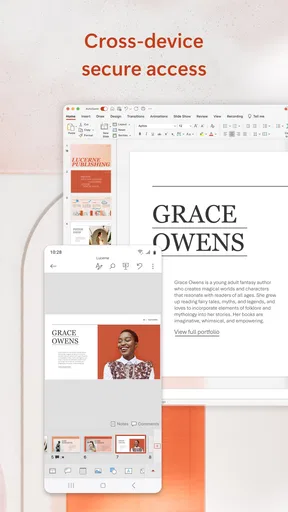
Another cool feature is the collaboration capability. You can easily share your presentation with others, allowing for real-time editing and feedback. This is a game-changer for group projects or team meetings, as it ensures that everyone is on the same page. Plus, the integration with OneDrive means your work is always backed up and accessible from anywhere.
Shared editing works best when the group agrees on a simple process. For example, one person can own the slide order and overall story while others contribute their sections, then the owner can make the final pass for repeated wording and inconsistent styles. That small bit of coordination matters: real-time access does not automatically prevent a deck from becoming uneven. I would also make sure collaborators know which version is current before a deadline, especially if anyone is moving between devices.
For an everyday use case, imagine a student group preparing a class presentation. One person can draft the outline, another can gather supporting material, and each contributor can help shape a section in the shared deck. Before presenting, the group should read the slides from beginning to end and remove duplicated points. The app can make the joint editing easier, but it cannot decide which information deserves space or whether the group’s explanation is clear.
Design and Usability
The design tools in PowerPoint are robust, giving you the ability to create visually stunning slides. The SmartArt feature is especially handy for those of us who need to include charts and diagrams. It’s user-friendly and helps convert complex data into easy-to-understand visuals. The drag-and-drop functionality makes rearranging slides a breeze, and the alignment guides help keep everything neat and tidy.
For diagrams, I’d use SmartArt when the relationships are straightforward: a short process, a simple hierarchy, or a set of connected ideas. If the information is complicated enough that the diagram needs many labels, I would simplify the explanation first rather than squeeze every detail onto one slide. A visual can make a point easier to grasp, but it can also make a weakly organized point look more polished than it really is.
One small-screen trade-off is that visual balance is easier to assess at presentation size than while zoomed in. When editing, I would check both the individual elements and the whole slide: text that looks tidy close up may be too small or crowded when viewed as a complete page. Keeping each slide focused on one main idea is a practical safeguard, particularly when the deck will be shown to people sitting away from the screen.
Usability is top-notch. The app runs smoothly on both Android and iOS, and I didn’t encounter any lag or crashes during my testing. The touchscreen controls are responsive, and the pinch-to-zoom feature is perfect for making fine adjustments without a hitch.
That said, responsive touch controls do not remove the limits of editing on a phone. Selecting a small object among several nearby items can take patience, and extended text editing is generally easier with a physical keyboard. I would use mobile for quick corrections, reviewing, and moving through a deck, then switch devices for a substantial rewrite or a careful redesign. That is not a flaw unique to PowerPoint; it is a sensible boundary for slide work on a compact display.
When another kind of tool may suit you better
If your main task is writing a long report, a word processor is usually a better starting point. It lets you develop paragraphs and arguments without forcing every thought into a slide-sized space. I would move the finished ideas into PowerPoint only when the audience needs a visual presentation, a paced explanation, or a concise set of takeaways.
For a group that prioritizes browser-based collaboration and a lightweight shared workflow, a web-first presentation tool may be more comfortable. For someone who mainly wants a quick visual for a social post or a one-page graphic, a design-focused app may be more direct than building a slide deck. These alternatives serve different jobs; the key question is whether the output needs to remain a presentation that colleagues can continue editing.
PowerPoint is also not my first pick for a person who wants every creative decision handled automatically. Templates and an outline can reduce the blank-page problem, but they do not replace choices about audience, evidence, tone, or visual hierarchy. If you dislike arranging slides and only need to share information, a document or a simple set of notes may be faster and clearer.
Making the switch without losing time
If you are moving an existing deck into PowerPoint, begin with a copy and inspect the slides that rely on unusual fonts, layered objects, or complex layouts. A file can look acceptable at first glance while small differences in spacing or line breaks change how a slide reads. I would check the opening, the densest slide, and the final slide first, then scan the rest for anything that has shifted before sharing or presenting.
If you are moving away from PowerPoint, think about who needs to edit the presentation after you. A visually attractive export may be enough when people only need to view it, but it is less useful when a teammate must revise the content. Keeping an editable working copy and agreeing on a handoff format can prevent last-minute confusion. The right choice depends as much on the audience’s workflow as on the author’s preference.
For a new user, I’d start with a small, low-stakes deck rather than trying to learn every control at once. Pick a template only if it helps establish a clean layout, make a few slides with distinct purposes, and then review the sequence aloud. If a slide needs a long explanation to make sense, split or simplify it. This approach helps reveal whether the app’s way of organizing content feels natural before you commit a major project to it.
Final Thoughts
So, is Microsoft PowerPoint worth downloading? Absolutely. It’s a powerful tool that combines ease of use with a wide range of features that cater to both beginners and experts. Whether you’re crafting a school project or a business proposal, PowerPoint has the tools you need to make your presentation shine.
I’d recommend it most to students, coworkers, and anyone who regularly receives or shares slide decks in this format. It is especially practical when you want to outline an idea, collaborate on a presentation, and make small edits away from your desk. I would skip it as my main creative tool if I rarely make slides, need a long-form writing space, or expect a phone to handle every stage of detailed design comfortably.
If you haven’t already, give it a try. You might find yourself enjoying the process of creating presentations more than you ever thought possible. It’s a classic for a reason, and it continues to prove its worth in the ever-evolving digital landscape.
My clearest recommendation is to judge it by one real task: prepare a short deck, share it with someone who needs to contribute, and check the result on the device you will use to present. If that process feels natural, PowerPoint is likely a good fit. If the editing feels cramped or the slides are more work than the message deserves, choose a document or a simpler visual tool instead. The right presentation app is the one that helps your audience understand the point, not the one that gives you the most buttons to explore.
Privacy and Permissions
See what permissions an app requests and how it handles your data.
- Identity
- find accounts on the device, add or remove accounts
- Contacts
- find accounts on the device, read your contacts
- Photos/Media/Files
- read the contents of your USB storage, modify or delete the contents of your USB storage
- Storage
- read the contents of your USB storage, modify or delete the contents of your USB storage
- Camera
- take pictures and videos
- Microphone
- record audio
- Wi-Fi connection information
- view Wi-Fi connections
- Other
- view network connections, create accounts and set passwords, pair with Bluetooth devices, measure app storage space, full network access, change your audio settings, control Near Field Communication, read terms you added to the dictionary, run at startup, draw over other apps, use accounts on the device, control vibration, prevent device from sleeping, add words to user-defined dictionary, install shortcuts, Google Play license check
How Microsoft PowerPoint Compares
Full ComparisonChoose Google Slides for live collaboration, PowerPoint for presentation tools and Microsoft integration, or WPS Office for an all-in-one document and PDF suite.
| App | Developer | Rating | Price |
|---|---|---|---|
 Google Slides | Google LLC | 4.4 | Free |
 Microsoft PowerPointThis App | Microsoft Corporation | 4.8 | Free |
 WPS Office-PDF, Word, Sheet | WPS SOFTWARE PTE. LTD. | 4.4 | Free |
Verdict
Strengths of Microsoft PowerPoint
- User-friendly interface for easy navigation.
- Wide range of templates available.
- Seamless integration with other Microsoft apps.
- Cloud storage support for accessibility.
- Supports multimedia embedding for dynamic presentations.
Limitations of Microsoft PowerPoint
- Requires a Microsoft account to access full features.
- Some features locked behind a subscription.
- Can be resource-intensive on older devices.
- Limited customization on mobile versions.
- Occasional compatibility issues with non-Microsoft formats.
Other Releases by Microsoft Corporation
View All
Microsoft OneDrive
Productivity4.6

Microsoft OneNote: Save Notes
Productivity4.6

Link to Windows
Productivity4.0

Microsoft Outlook
Productivity4.3
Similar Picks in This Category
View All
Google Calendar
Google LLC4.6

Google Drive
Google LLC4.3

Google Assistant
Google LLC3.9
Microsoft OneDrive
Microsoft Corporation4.6

Samsung Calendar
Samsung Electronics Co., Ltd.4.1
Microsoft OneNote: Save Notes
Microsoft Corporation4.6
Frequently Asked Questions
What features does Microsoft PowerPoint offer for presentations?
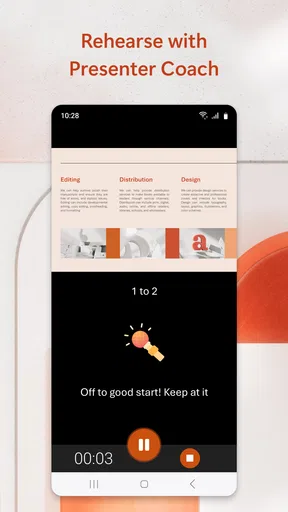
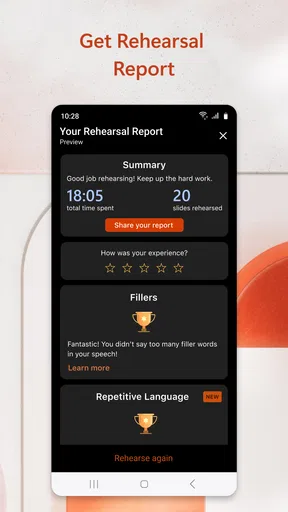
Microsoft PowerPoint provides a comprehensive suite of tools for creating engaging presentations, including customizable templates, animations, transitions, and multimedia integration. Users can also collaborate in real-time, use Presenter Coach to practice their delivery, and access cloud storage to ensure their presentations are available across devices.
Is Microsoft PowerPoint free to download and use on mobile devices?
Microsoft PowerPoint is available for free on Android and iOS devices, offering basic features. However, to unlock premium features such as advanced design tools and additional storage, users need a Microsoft 365 subscription. The subscription also provides access to other Microsoft Office apps and services.
Can I collaborate with others using Microsoft PowerPoint on mobile?
Yes, Microsoft PowerPoint allows real-time collaboration on mobile devices. Users can share presentations with others, who can then view, comment, and edit simultaneously. This feature requires an internet connection and is enhanced with a Microsoft 365 subscription for seamless collaboration.
Does Microsoft PowerPoint support multimedia integration?
Microsoft PowerPoint supports extensive multimedia integration, allowing users to embed images, videos, and audio files within their presentations. This helps in creating dynamic and interactive slideshows. Users can also access the Microsoft stock image library and add animations to enhance their content.
How secure is my data when using Microsoft PowerPoint on mobile?
Microsoft PowerPoint on mobile devices offers robust security features to protect user data. Files are encrypted, and users can set passwords for additional protection. With a Microsoft 365 account, users also benefit from advanced security options, including malware protection and data loss prevention.
